
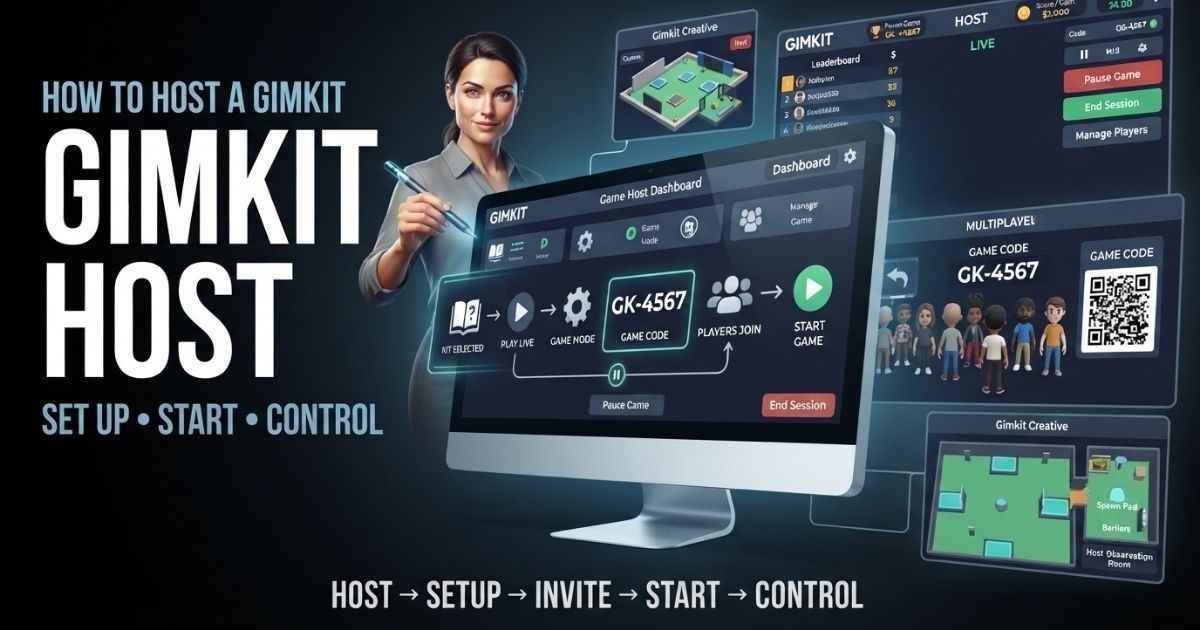
A Gimkit host is the person who runs a live game session. As the host, you choose the questions, pick the game mode, and control the pacing for your players.
Whether you run a review game in your classroom or build custom maps, learning how to manage your session helps everything run smoothly. This guide covers standard dashboard hosting and advanced custom map setups.
Step-by-Step Guide: How to Host a Live Gimkit Game
Hosting a live game from your dashboard takes just a few clicks. Follow these simple steps to get your players into a session.
- Log in to your account: Open Gimkit and sign in to your educator dashboard.
- Select your kit: Find the kit or question set you want to use. You can use one you made or search the public library.
- Click Play Live: Hover over your kit and click the Play Live button to open the game setup screen.
- Choose your game mode: Use the Mode Picker to select how your game will look and play. Popular modes include Classic, Trust No One, and Tag.
- Adjust game settings: Pick your goals, starting cash, and other settings. Click Continue when you are ready.
- Share the code: A lobby screen will appear with a game code and a QR code. Tell your players to go to the join page and enter the code to join your room.
- Start the game: Wait for everyone to join the lobby, then click the Start Game button.
Managing Your Live Session and Host Controls
Once your game starts, your dashboard changes into a control panel. You no longer play the game yourself; instead, you manage the live session.
Here are the key host controls you can use during a game:
- Spectator View: Watch the leaderboard update in real-time as players earn energy and cash.
- Music and Sound Control: Turn background music or sound effects up or down directly from your screen.
- Lock the Room: Stop late students from joining after the game starts by locking the lobby.
- Player Management: Remove disruptive players from the session with a quick click if needed.
- End Game Early: Stop the session at any time if your time runs out or you want to review scores early.
Also Read: Crackstube: A Guide to Safety, Meaning, and Platform Truths
Advanced Hosting: Setting Up a Host Room in Gimkit Creative
If you build custom maps using Gimkit Creative, you can design a physical space for players to gather before a match starts. This is called a host room.
Building a functional host room takes a few specific tools from the build menu:
- Spawn Pads: Place these on the floor so players appear in the right spot when they load into your map.
- Barriers: Use invisible walls or barriers to trap players inside the host room until you are ready to let them out.
- Buttons or Switches: Place interactive buttons that players can trigger to open doors or drop barriers.
- Item Granters: Give players starting items, gear, or tools the moment they spawn in the room.
Design your room with clear walking paths so students do not get stuck on walls. Test your spawn pads and barriers by running a quick test session alone before sharing your map with others.
Frequently Asked Questions About Gimkit Hosting
What is a Gimkit host?
A Gimkit host is the account owner or leader who starts and manages a live game session. The host controls the game mode, sets the rules, and watches the leaderboard.
How do you host a live game in Gimkit?
Log in to your dashboard, pick a kit, and click Play Live. Choose a game mode, adjust your settings, and share the join code with your players.
How do I create a Gimkit host account?
Go to the main Gimkit website and sign up for a free educator account. Once verified, your dashboard will give you access to host tools and kits.
How do I set up my game host for a Creative Gimkit map?
Open Gimkit Creative, build a closed room using walls and barriers, and place spawn pads inside. Use switches and item granters to manage how players leave the room.
What items do I need to make a host room in Gimkit Creative?
You need spawn pads for player placement, barriers to keep players contained, and triggers or buttons to control when the match begins.
Hosting a live game or building a custom map does not have to be difficult. Pick your kit, set your rules, and guide your players through an engaging review session every time.
You Might Also Like: Brasssmile Com: Understanding the Confusion, Content, and Contexts